
Resources
How to Add a Shared Mailbox
Step-by-step instructions for adding and using a shared mailbox in Microsoft 365 — Outlook on the web and Outlook mobile.
Before You Begin
You must already have permission to access the shared mailbox. These instructions add the mailbox to your Outlook view; they do not grant mailbox access by themselves.
Quick Reference
- Outlook on the web: Right-click your mailbox in the left folder list, select Add shared folder or mailbox, type the shared mailbox address, then click Continue.
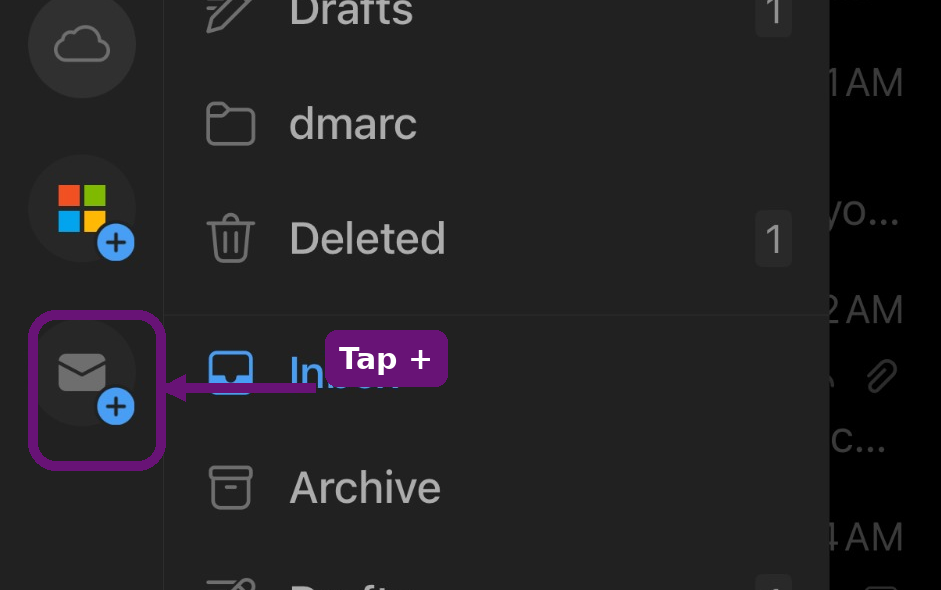
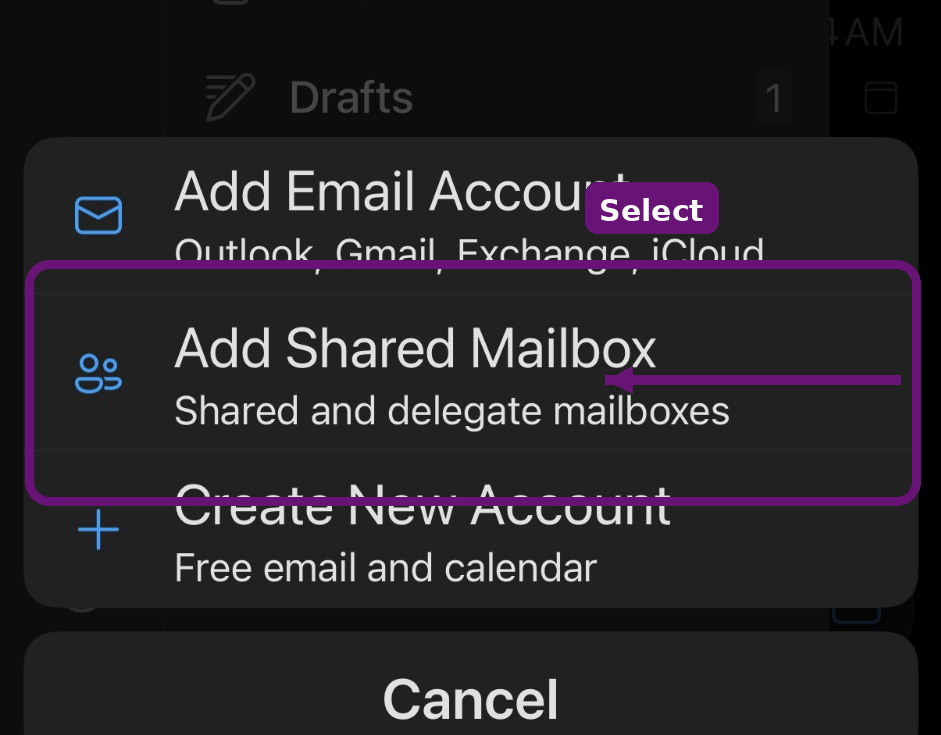
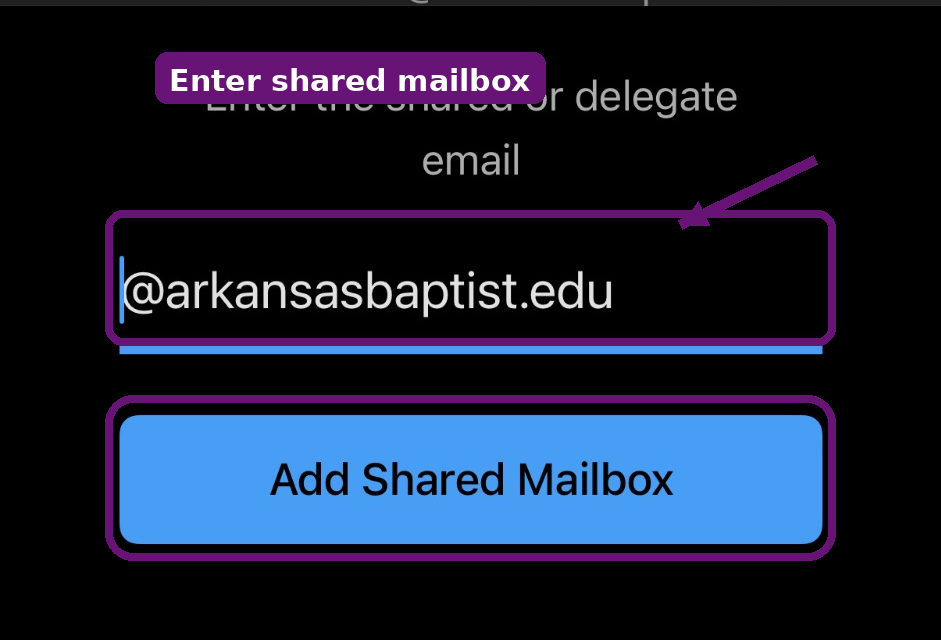
- Outlook mobile: Tap the mail/envelope icon with the blue plus sign, select Add Shared Mailbox, enter the mailbox address, and tap Add Shared Mailbox.
Part 1
Outlook on the Web
Use these steps when you are already signed in to Outlook in a web browser.
Browser path: Mailbox list → right-click your mailbox → Add shared folder or mailbox → enter mailbox address → Continue
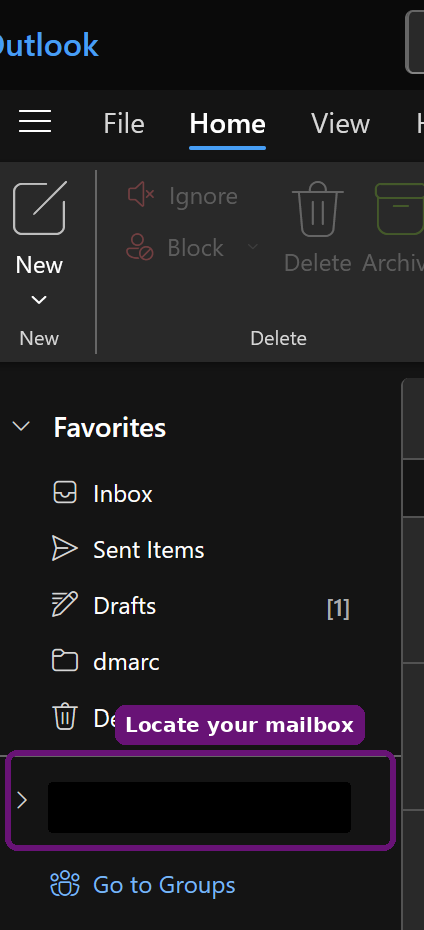
Find your mailbox in the left folder list
After signing in to Outlook on the web, look at the folder list on the left side of the screen. Locate your own mailbox name or email address under the Favorites section.
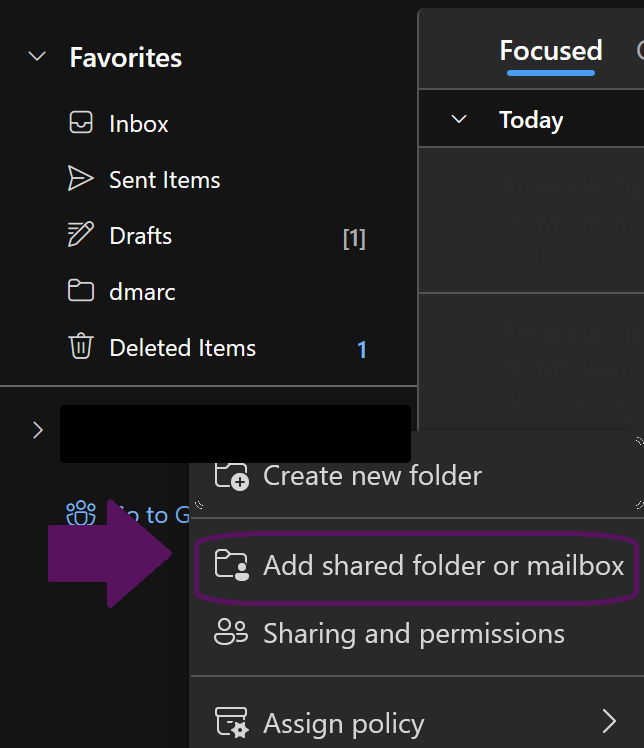
Open the shared mailbox option
Right-click your mailbox name or email address. From the menu that opens, select Add shared folder or mailbox.
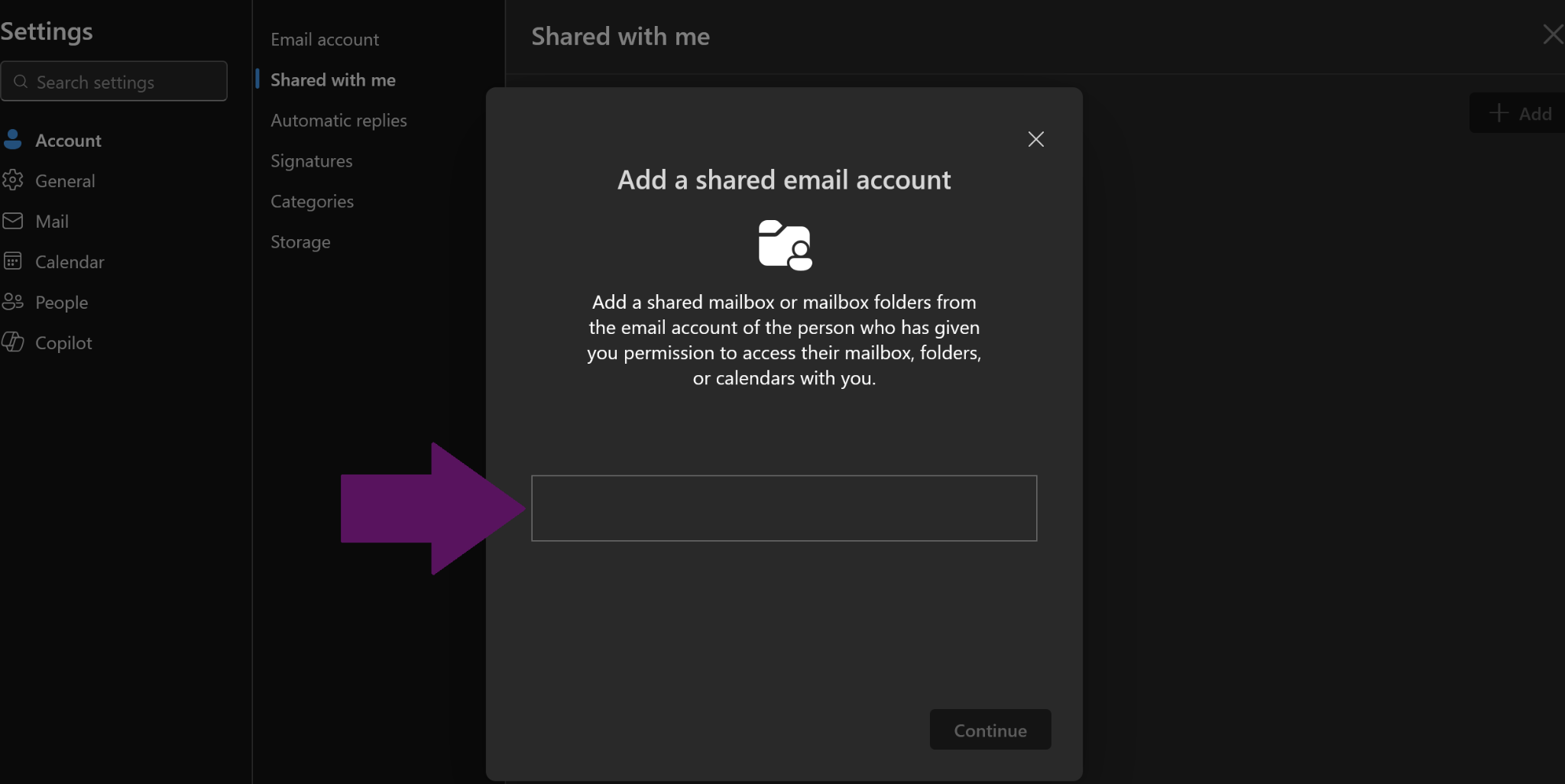
Enter the shared mailbox name or email address
In the Add a shared email account window, click inside the entry box. Type the shared mailbox name or full email address, select the mailbox if Outlook shows a suggestion, and then click Continue.
Note: If the Continue button stays unavailable, make sure the full mailbox address was typed correctly or select a valid mailbox from the suggestions.
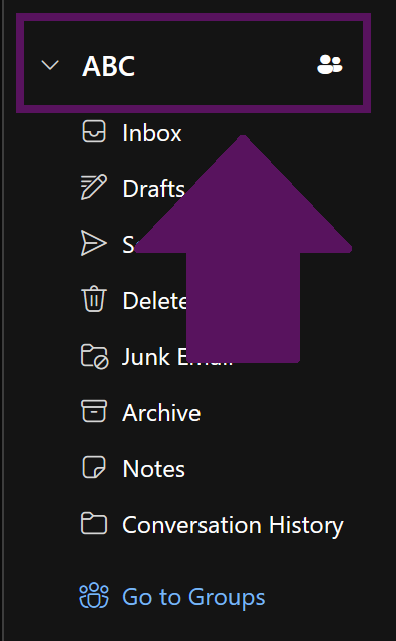
Confirm the shared mailbox was added
The shared mailbox will appear in the left navigation pane as a separate mailbox. Click the arrow beside it to expand the mailbox, then open the Inbox, Drafts, Sent Items, or any other folder you need.
Part 2
Outlook Mobile
Use these steps in the Outlook mobile app on a phone or tablet.
Mobile path: Open the left menu → tap the mail/envelope icon with the blue plus sign → Add Shared Mailbox → enter the mailbox address → Add Shared Mailbox
Open the folder menu and tap the mail + icon
From the Outlook mobile app, open the left navigation or folder menu. Tap the mail/envelope icon with the blue plus sign.
Select Add Shared Mailbox
When the menu appears, tap Add Shared Mailbox. Do not select Add Email Account unless you are adding a separate email account.
Enter the shared mailbox email address
Type the full shared or delegated mailbox email address. If the domain is already shown, type the mailbox name before the @ symbol. Then tap Add Shared Mailbox.
After the Mailbox Is Added
- The shared mailbox should appear in the Outlook mobile folder list as a separate mailbox or folder group.
- Tap the shared mailbox name or its Inbox to open it.
- It may take a few moments for mail and folders to sync the first time.
Troubleshooting
Use this checklist if the shared mailbox does not appear or does not open correctly.
- Confirm the user has already been granted access to the shared mailbox by IT.
- Confirm the shared mailbox email address was entered correctly.
- Refresh the browser page or close and reopen the Outlook mobile app.
- Sign out of Outlook and sign back in if the mailbox still does not appear.
- Update the Outlook mobile app if the Add Shared Mailbox option is missing.
- Sending from the shared mailbox may require separate Send As or Send on behalf permission.
Important
Adding a shared mailbox only makes the mailbox visible in Outlook. Access to the mailbox must be assigned separately by an administrator.
Still Need Help?
If the shared mailbox still does not appear after following these steps, or you need access granted, please reach out to the myABC IT Support Portal.
Submit a Help RequestBack to myABC IT Self Service
Return to the main IT self-service page to access other services and resources.